
Be Safe Without Wearing Anything



To install, click in the links above to download Pontosense Care App in the iOS App Store or Google Play Store.
Pontosense Care is a smart home monitoring app that pairs with our mmWave sensors to help you care for your loved ones, without relying on cameras, microphones, or wearables. The app is designed with privacy and simplicity at its core, giving you a secure way to stay connected and informed.
With the App, you can:
Whether you’re a family member or a caregiver, our Care App helps you support independent living with dignity and confidence.
Still have questions? Contact info@bedfordmedicalalert.ca
Cable ties keep the power cord of your Silver Shield device anchored on the wall, preventing it from hanging loosely or becoming a tripping hazard.
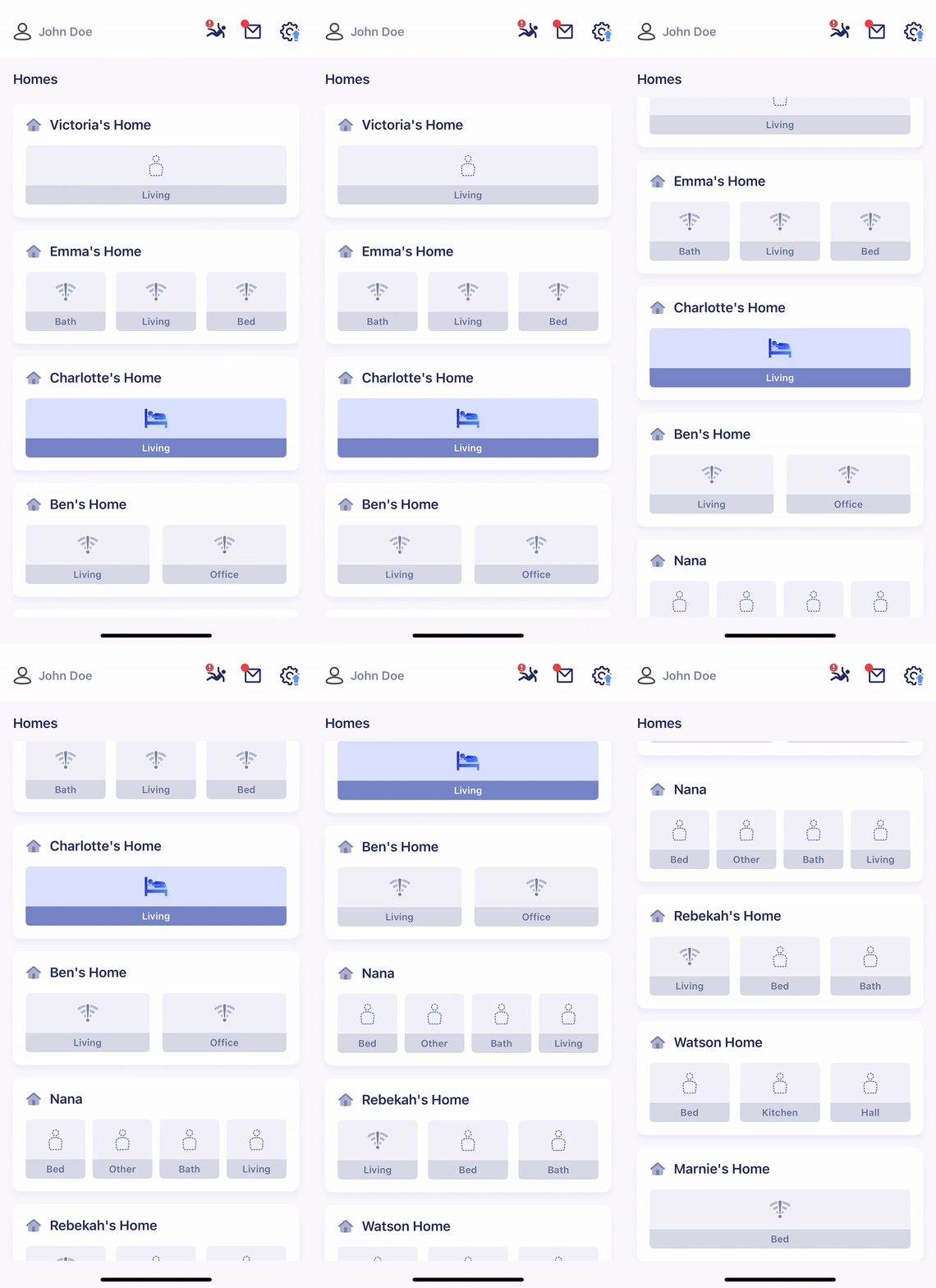
The Homes view is a consolidated view of all the homes you’re monitoring in one place. See all occupied rooms at a glance for easy access to peace of mind.
Select a home to access the Rooms view.
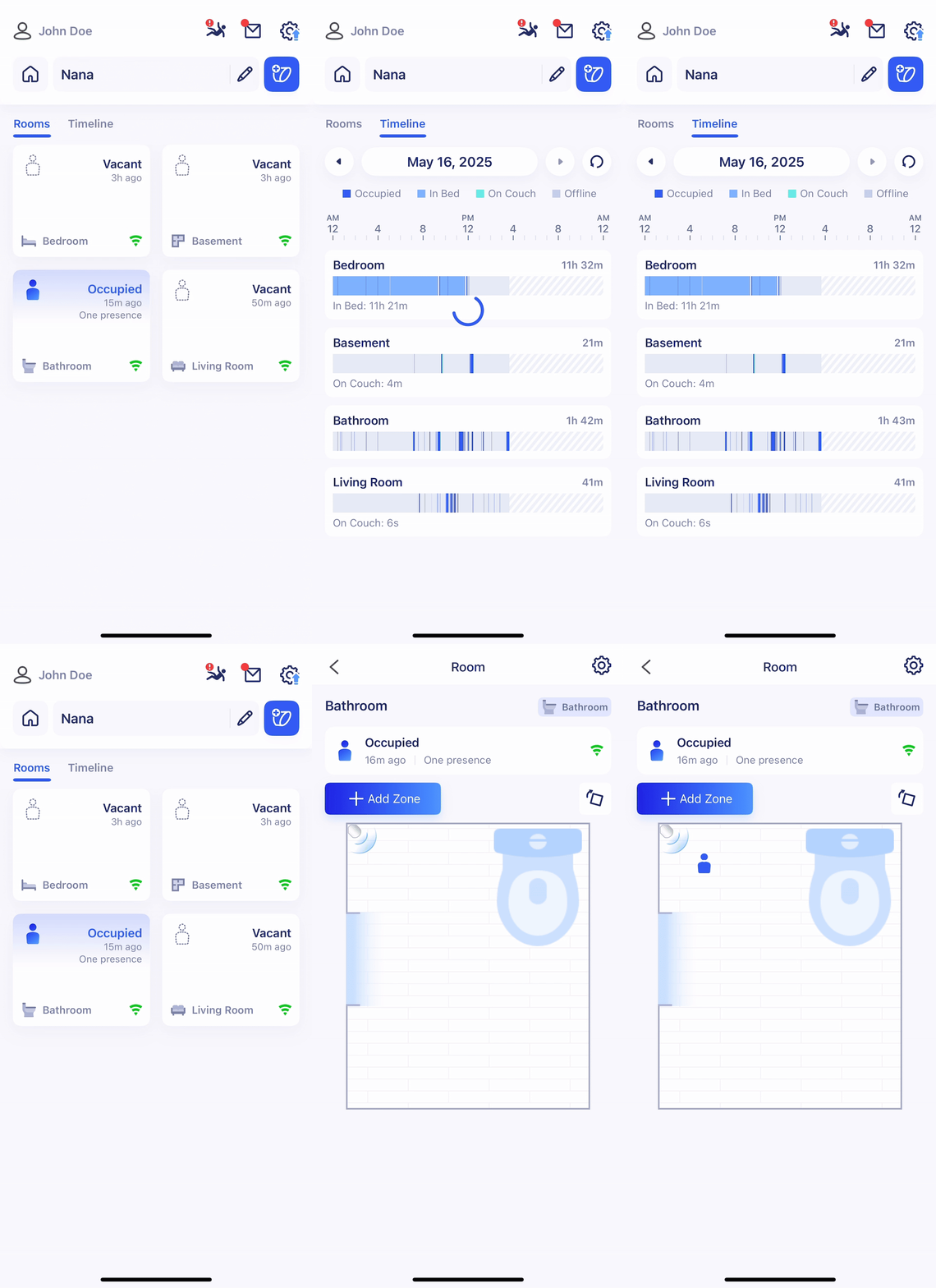
The Rooms view shows the real-time occupancy status of each room in a home for convenient monitoring, 24/7. Tap a room to see the real-time location of a loved-one.
Swipe right to see the Timeline view, which provides meaningful insights on resident habits throughout the day, helping you detect unusual behaviour.
Still have questions? Contact info@bedfordmedicalalert.ca
In the Pontosense Care app, fall detection delay is the amount of time the system waits before confirming a fall. This allows time for the person to recover on their own and helps reduce false alarms from short-duration movements.
Recommended: A delay of 90 seconds provides the best balance between accuracy and responsiveness.
Note: Choosing a lower delay may lead to more false alerts, especially if someone frequently bends, crouches, or moves quickly.
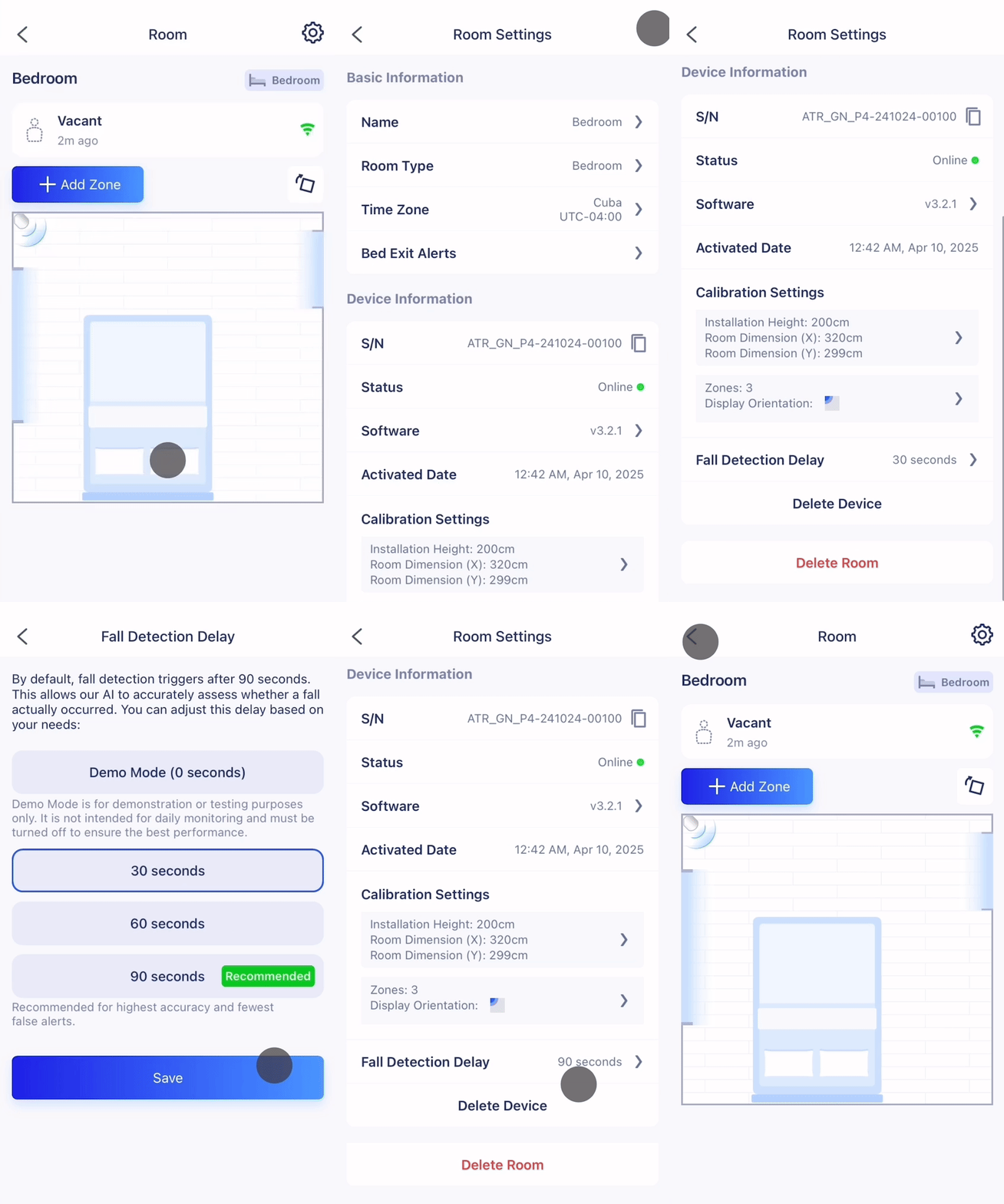
Navigate to the room where you’d like to adjust the fall detection delay.
Align the bottom of the mounting sleeve with the pencil mark. Fit it snugly into the corner, ensuring it is level and flush with both walls. Make sure the bracket is not tilted up or down.
Choose a duration (in seconds) that fits the needs of the person being monitored.
Tap Save to apply the new delay setting.
Still have questions? Contact info@bedfordmedicalalert.ca
Adding furniture zones helps define where key activities occur, such as lying in bed, sitting on the couch, or entering/exiting a room. This context allows caregivers to better understand behaviour patterns and identify high-risk areas for falls.
Available zone types:
Required materials: Measuring tape (only needed if using custom furniture dimensions)
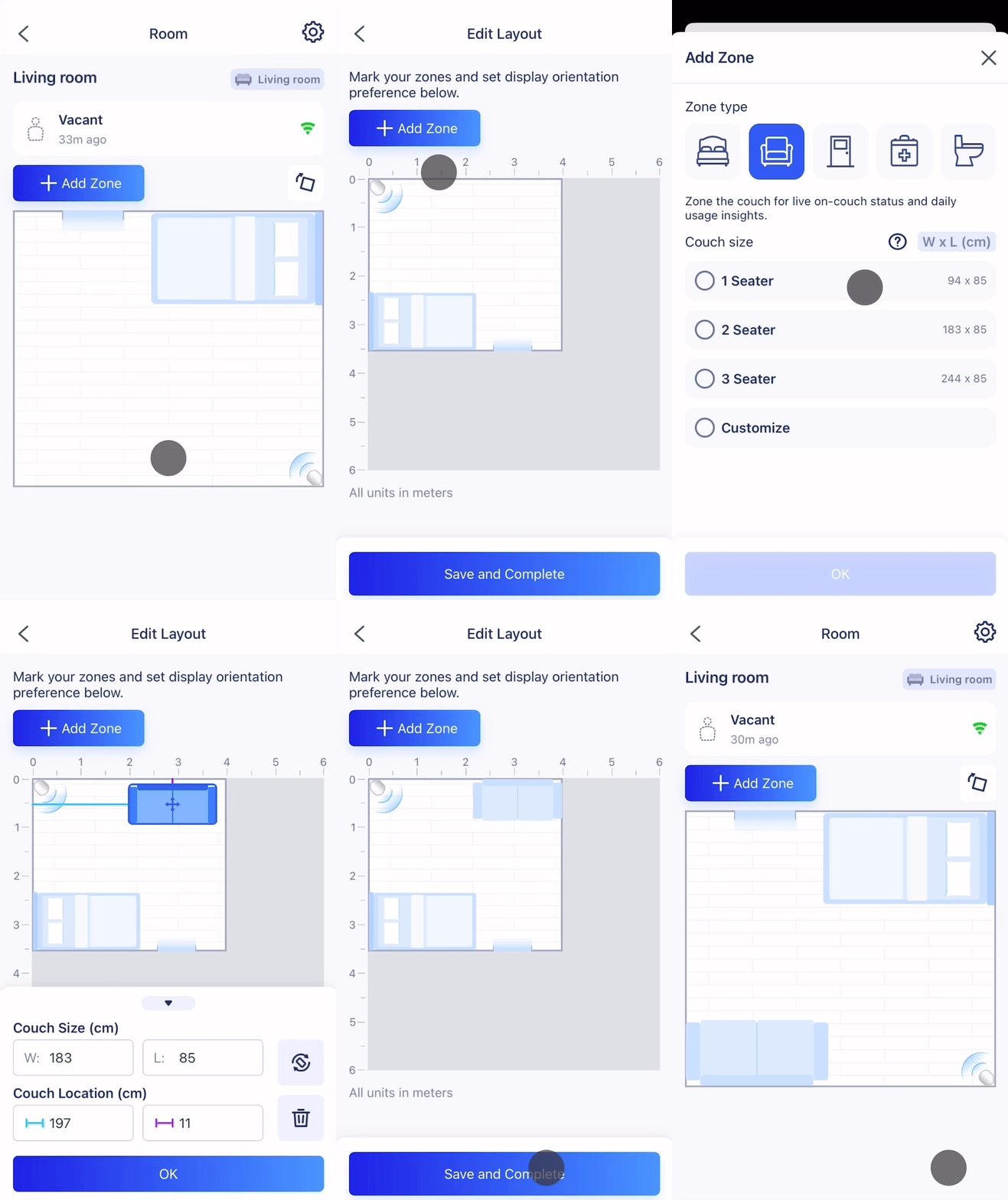
Navigate to the room you want to edit.
Choose the furniture type you want to zone (e.g., bed, couch).
Select a predefined size or choose Custom to enter exact dimensions.
If Custom, measure the furniture using a measuring tape, and input the length and width.
Drag and place the furniture zone in the correct spot on the layout. You can also sit or lie on the furniture to see the presence icon move to help verify its position in real time.
Once the size and position are correct, tap Save and Complete.
Still have questions? Contact info@bedfordmedicalalert.ca
Adding and removing furniture zones helps if you need to make changes in the room, or adjust a previous furniture.
Required materials: Measuring tape (only needed if using custom furniture dimensions)
Important: all the units are in metric (m)
Navigate to the room you want to edit and click in the Settings sign (upper right).
Click ‘Save and Continue” to go forward. Be careful to not edit the room measurements. Click “Confirm” when asked.
Once more, click in ‘Save and Continue” without changing the measurements.
You have accessed the layout to edit your actual room. As shown in the video, click on the furniture you want to edit. If you want to change measures, change the Width and Length and Save. If you want to change, delete or customize, click on the PENCIL sign.
If Custom, measure the furniture using a measuring tape, and input the length and width.
Once you are editing, in the left end of the image, in red, it will have the Remove option. Click “Save”.
To ADD a new furniture click in “Add More Zone” and chose of of the options. Click in the + sign to add the option you want and click “OK”. In the Edit Layout screen, add the measures, drag the furniture icon and drop in the layout. You can edit measures and change the position.
Once the size and position of the furnitures are correct, tap Save and Complete.
Still have questions? Contact info@bedfordmedicalalert.ca

Forgot your password? Follow these quick steps to reset it through the Pontosense Care app.
On the login screen, tap Forgot Password?
Type the email associated with your account and tap Send to receive a one-time verification code.
Look for an email with the subject line:
“Your one-time verification code”.
Enter the verification code in the app and set a new password.

Still have questions? Contact info@bedfordmedicalalert.ca
Bed exit alerts can be configured to notify care providers when a resident gets out of bed during a specific time window. These alerts are set for individual beds and help ensure timely assistance and added peace of mind.
Navigate to the room where you’d like to set a bed exit alert.
Tap the Settings icon in the top right corner of the room view.
Tap Bed Exit Alerts to open the alert configuration screen.
Choose your time zone, define the alert time window, and select how often the alert should repeat.
Tap Save to apply your settings.
Make sure that notifications for Pontosense Care are allowed in your phone’s system settings.

Still have questions? Contact info@bedfordmedicalalert.ca
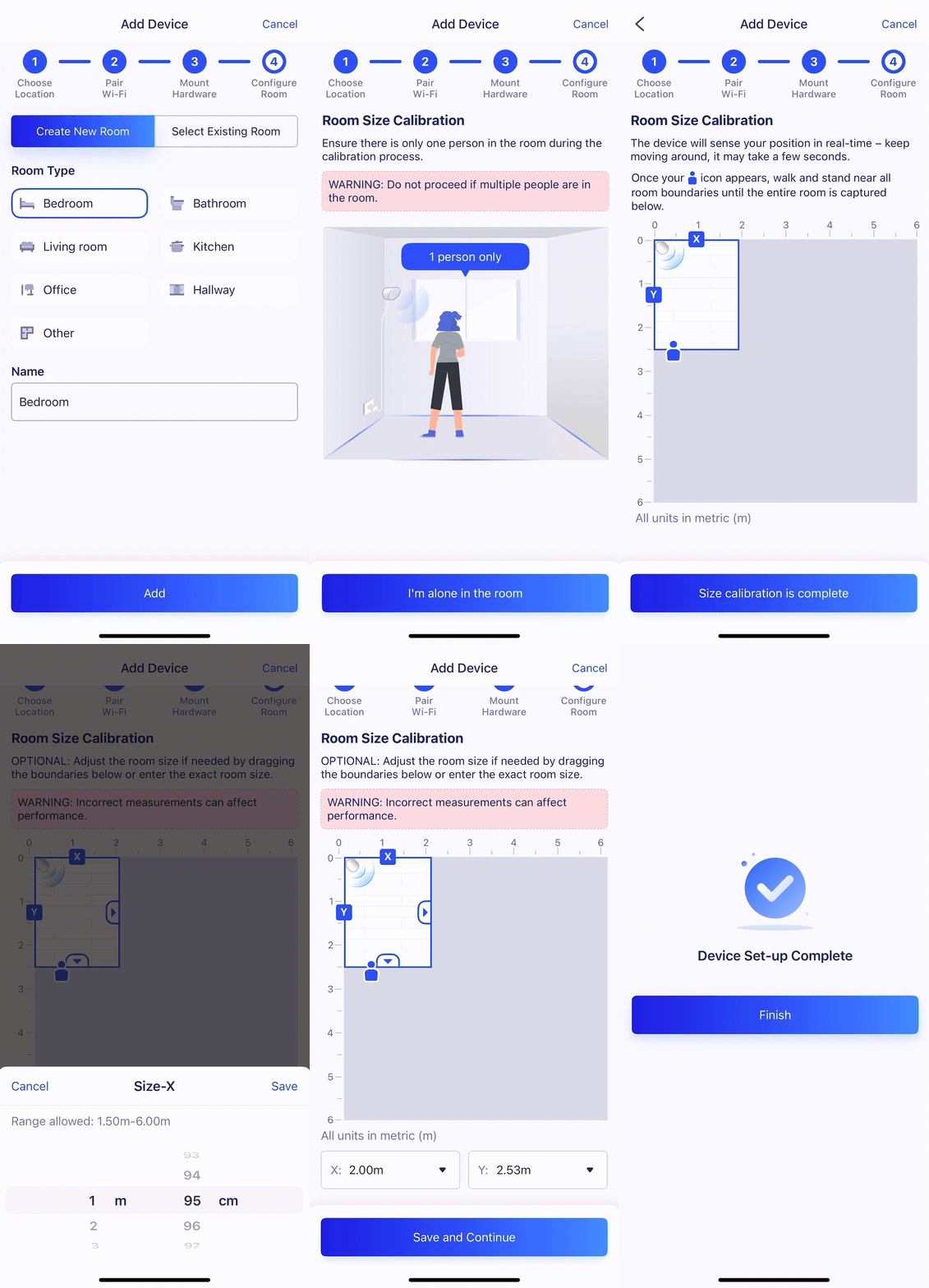
Proper room calibration is essential for ensuring accurate device performance. You can calibrate using live presence detection or by entering room measurements manually.
Tap the Add Sensor button.
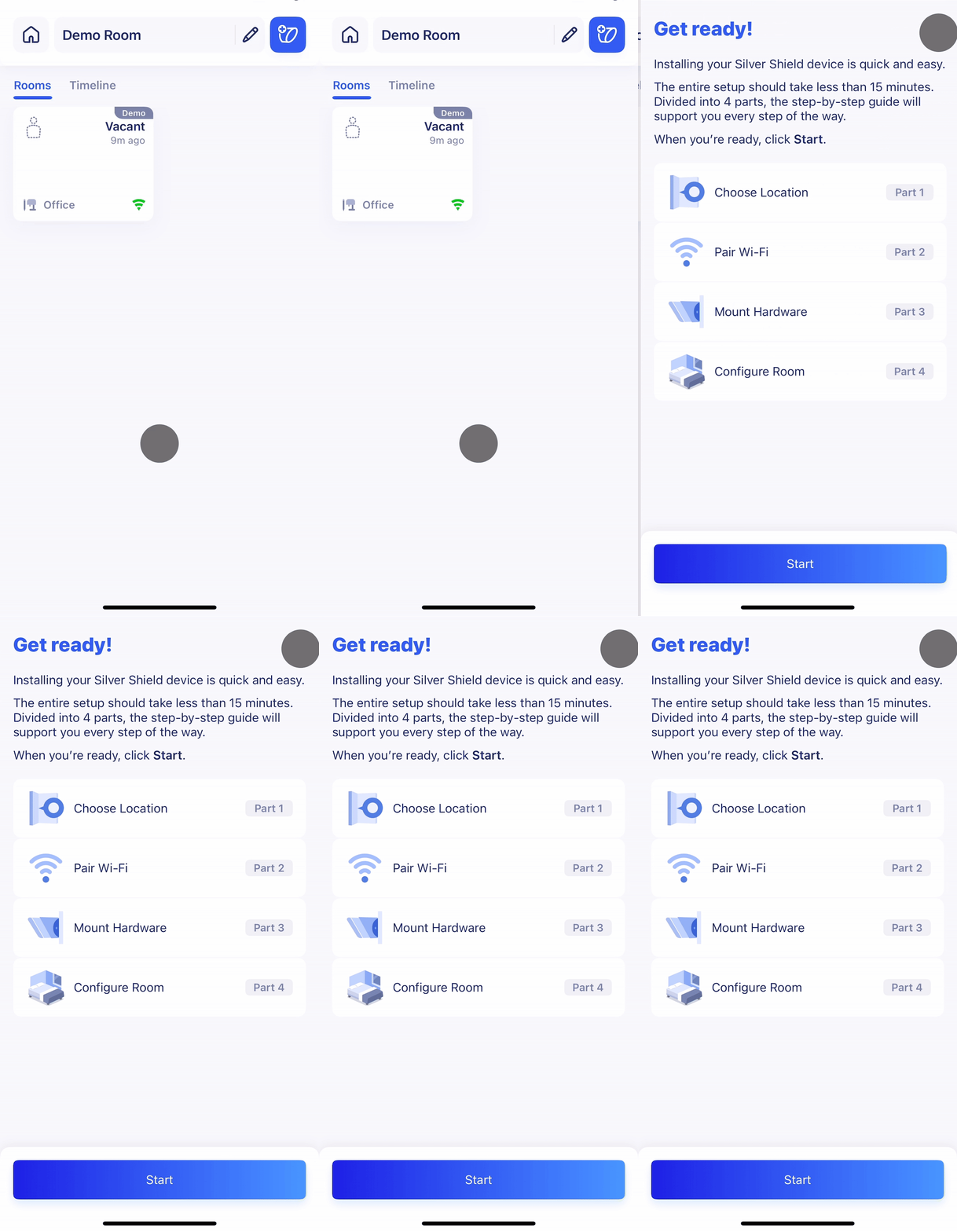
Follow the on-screen instructions to choose a device location, pair Wi-Fi, and mount hardware.
If you’re creating a new room, select the room type and change the room name, if necessary. Tap Add.
Enter the measured height of the sensor during install.
Use the real-time presence icon to determine the X and Y room dimensions. After 30 seconds, you can edit the room dimensions if you choose to measure them manually.
Follow our Zoning Furniture guide to add furniture zones to your room, helping you track room activity insights.
Tap Save and Continue, then Finish to complete setup.
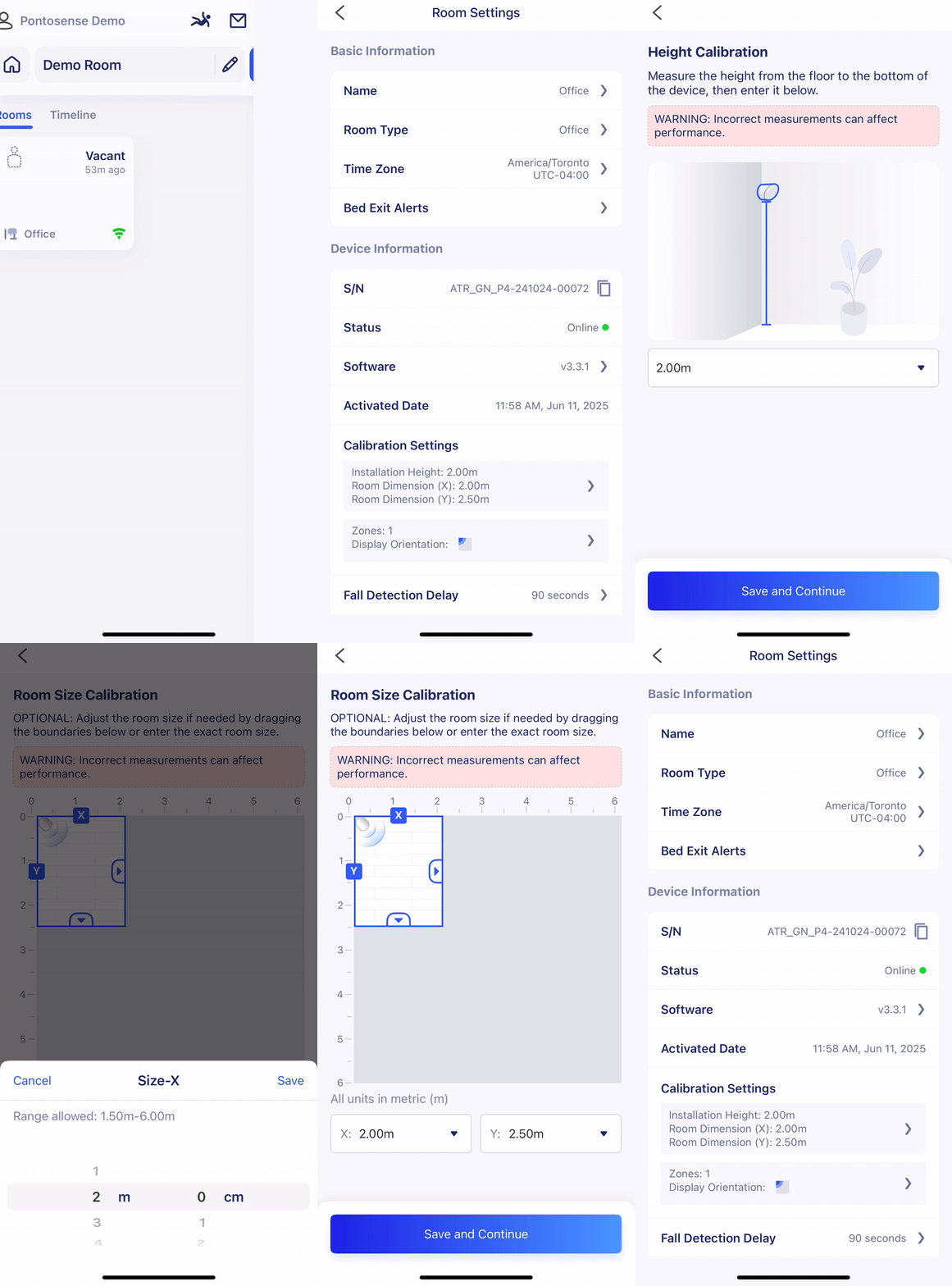
Tap the Settings icon and choose Calibration Settings.
If necessary, measure the height to the bottom of your device and confirm the value in the provided fields. Tap Save and Continue, then Confirm Accuracy.
Measure the X and Y dimensions of your room and enter them on screen. You can also drag the room borders on screen to change dimensions.
Follow our Zoning Furniture guide to add furniture zones to your room, helping you track room activity insights.
Tap Save and Complete.
Still have questions? Contact info@bedfordmedicalalert.ca
The AI Weekly Wellness Report provides a simple, weekly summary of activity, rest, and safety insights. It consolidates activity data into the following sections:
See how each day unfolds, with insights into active periods and restful breaks throughout the home.
Track time in bed and nighttime routines to spot changes or disruptions in rest.
Get proactive alerts on nighttime movement patterns that may point to a higher risk of falls.
Unlock personalized, AI-powered suggestions to encourage safer routines and healthier living.

Still have questions? Contact info@bedfordmedicalalert.ca
See an up-to-date log of all events occurring in your homes to understand high-risk areas and keep loved-ones safe.

Still have questions? Contact info@bedfordmedicalalert.ca
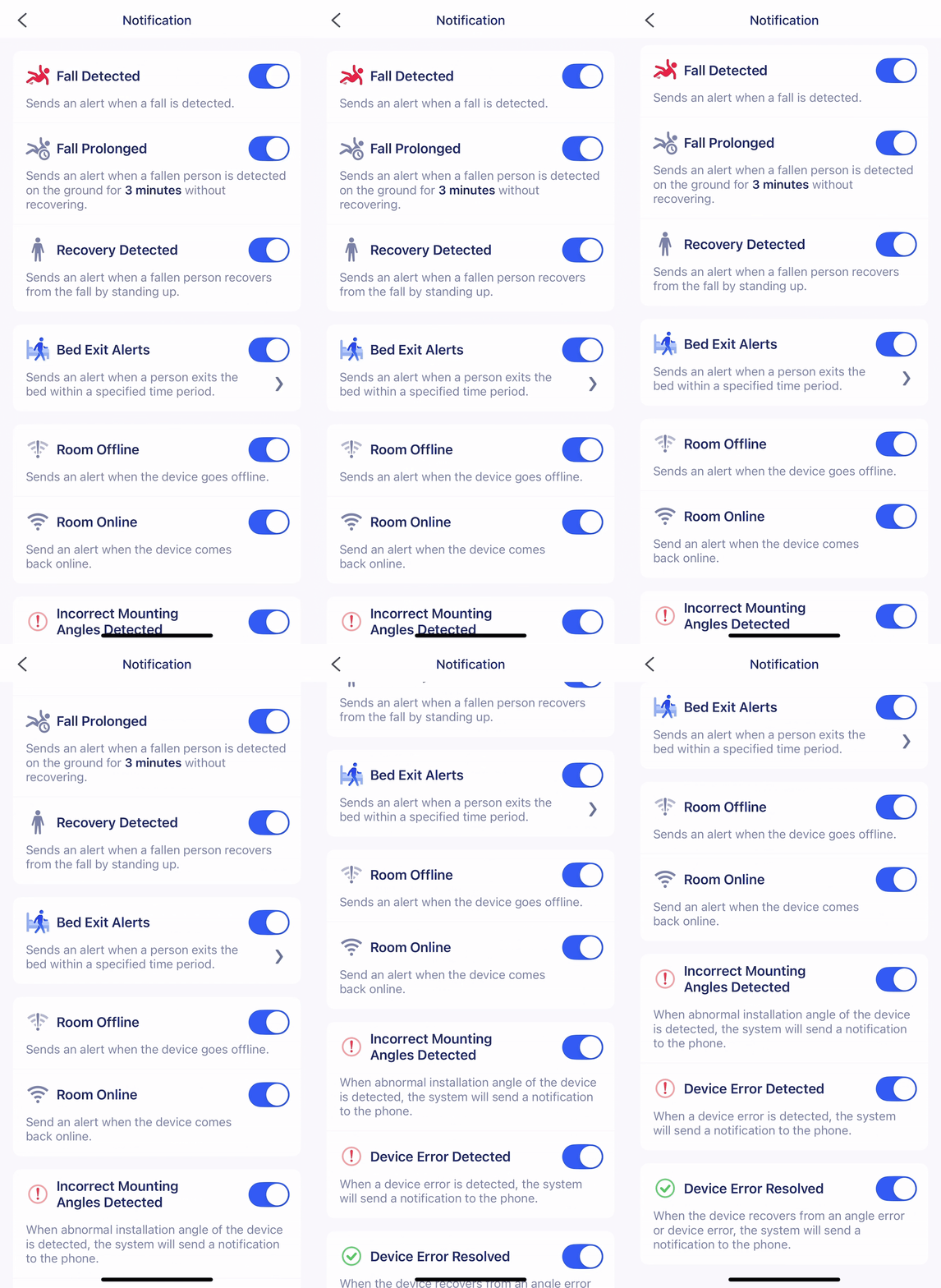
Configure Home and Room-specific alerts to track critical events like falls, recoveries, device connectivity, and bed exits.
Still have questions? Contact info@bedfordmedicalalert.ca
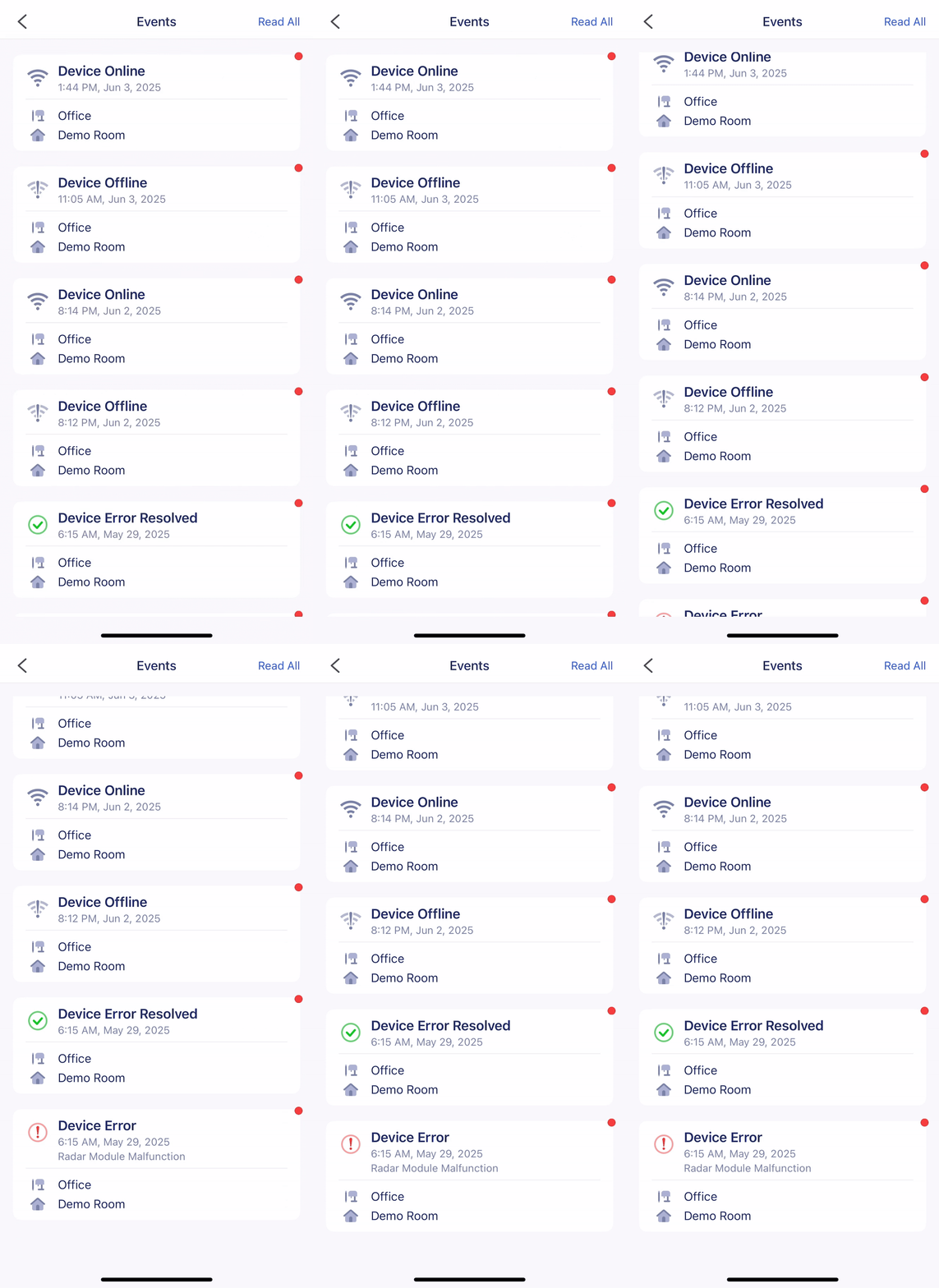
Monitor device status and connectivity in real time through a centralized event feed.
Still have questions? Contact info@bedfordmedicalalert.ca
Set up a new sensor in just minutes with our step-by-step onboarding guide.
Still have questions? Contact info@bedfordmedicalalert.ca
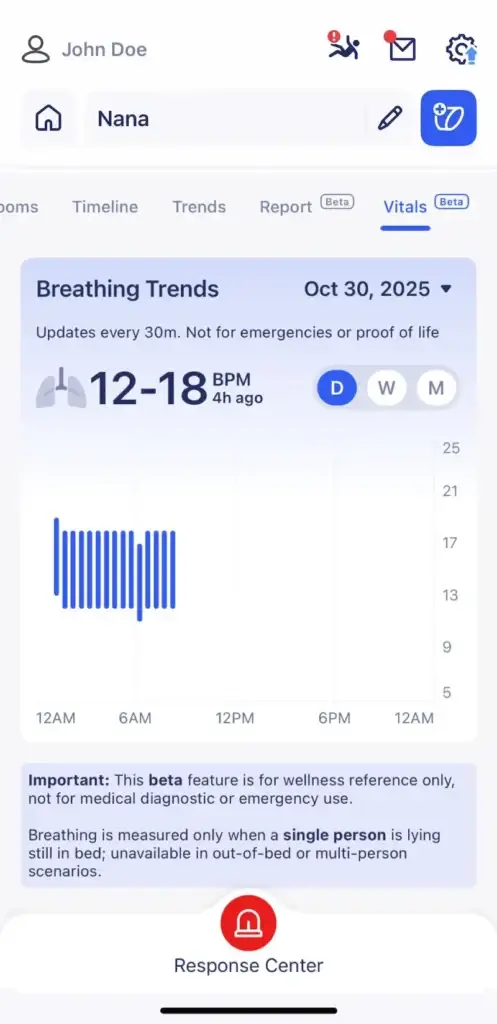
Silver Shield Radar delivers non-intrusive monitoring of vital signs without invasive wearables, cameras, or microphones.
Beyond high-precision fall detection and breath monitoring, Silver Shield works silently in the background to analyze and report trends in daily living, empowering home care providers to scale quicker while delivering more personalized and proactive care.
Important: This beta feature is for wellness reference only, not for medical diagnostic or emergency use.
Breathing is measured only when a single person is lying still in bed; unavailable in out-of-bed or multi-person scenarios.
Still have questions? Contact info@bedfordmedicalalert.ca

• 24/7 Monitoring
• 2-Way Voice
• Can be worn in Bath or Shower
• No Phone Line Needed
• Emergency Help Button
• Fall Detection*
• Pacemaker Compatible

• 24/7 Monitoring • 2-Way Voice Directly from Pendant • GPS Emergency Location Service • Can be worn in Bath or Shower IP67 • No Phone Line Needed • Emergency Help Button • Fall Detection Device*

• 24/7 Monitoring
• 2-Way Voice
• Can be worn in Bath or Shower
• No Phone Line Needed
• Emergency Help Button
• Can be worn as Necklace or Wristband
• Discreet size
• Pacemaker Compatible